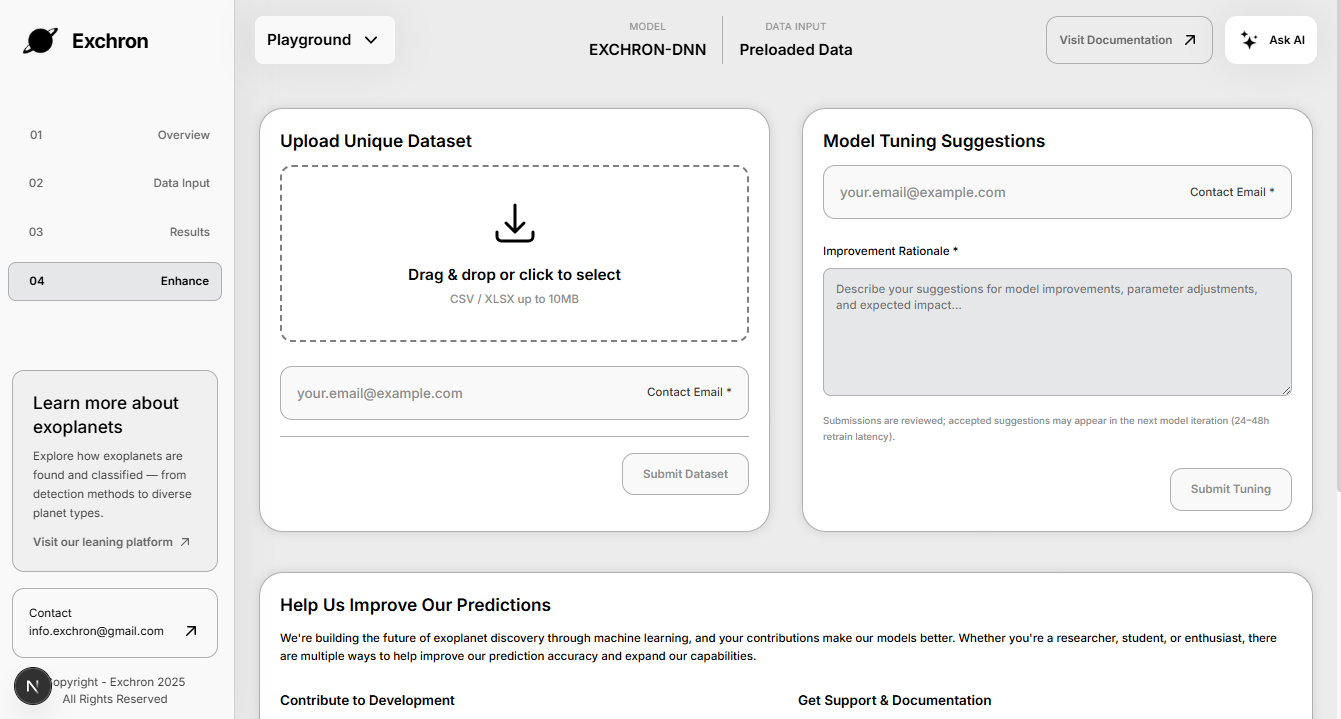
Playground Flow
Below is a guided walkthrough of the Playground. Replace the placeholder images with real screenshots of your app when they’re ready.
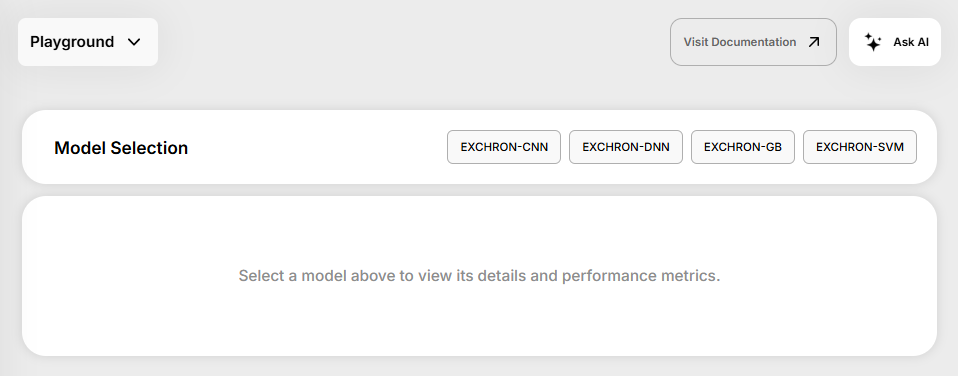
Step 1 — Choose a model
- First view: When you enter the platform, this is the first section you’ll see.
- Action: Choose the model you want to use for prediction by clicking a model name in the Model Selection section.
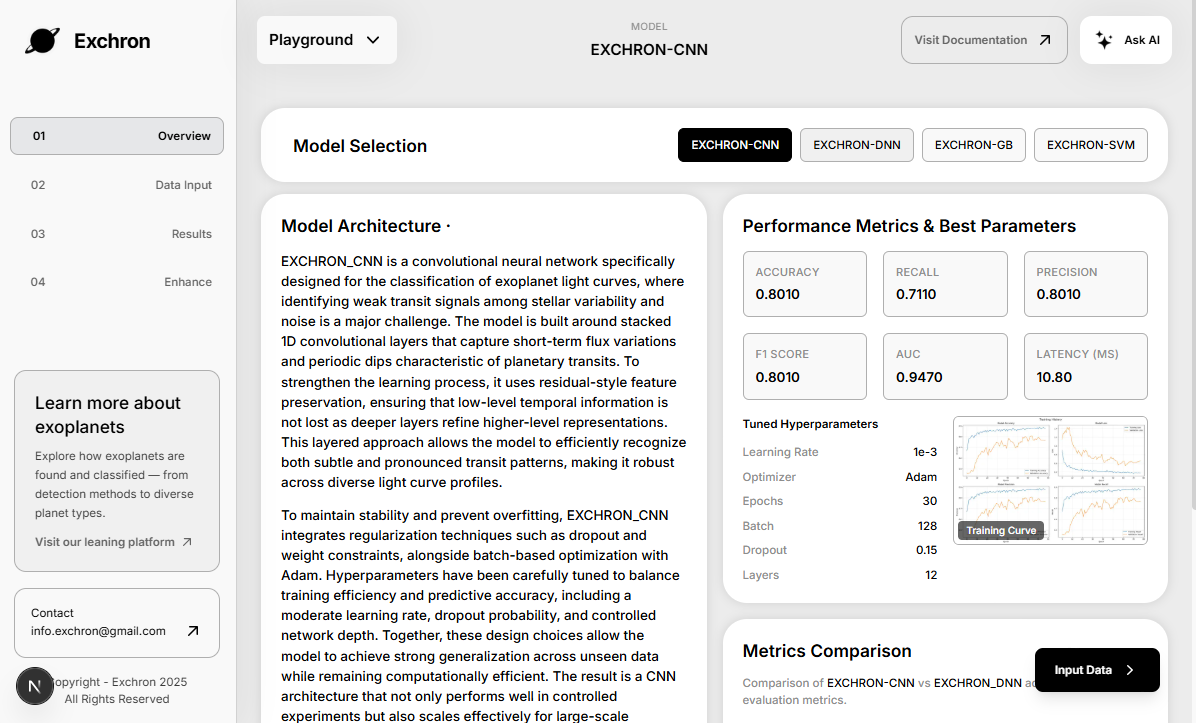
- Help: After selecting, a full overview of the chosen model is shown on the page.
Step 2 — Provide inputs (sliders or CSV)
- After selecting a model, an “Input Data” button appears at the bottom-right.
- Click it to proceed to the data input step.
Step 3 — Validate and preview
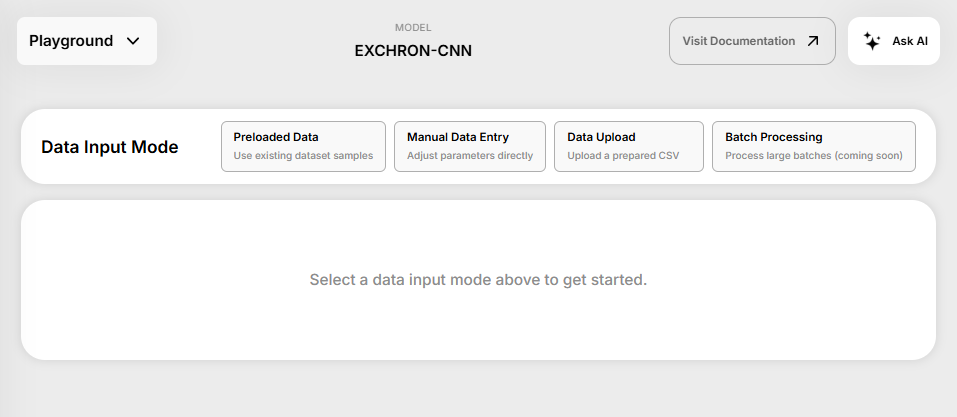
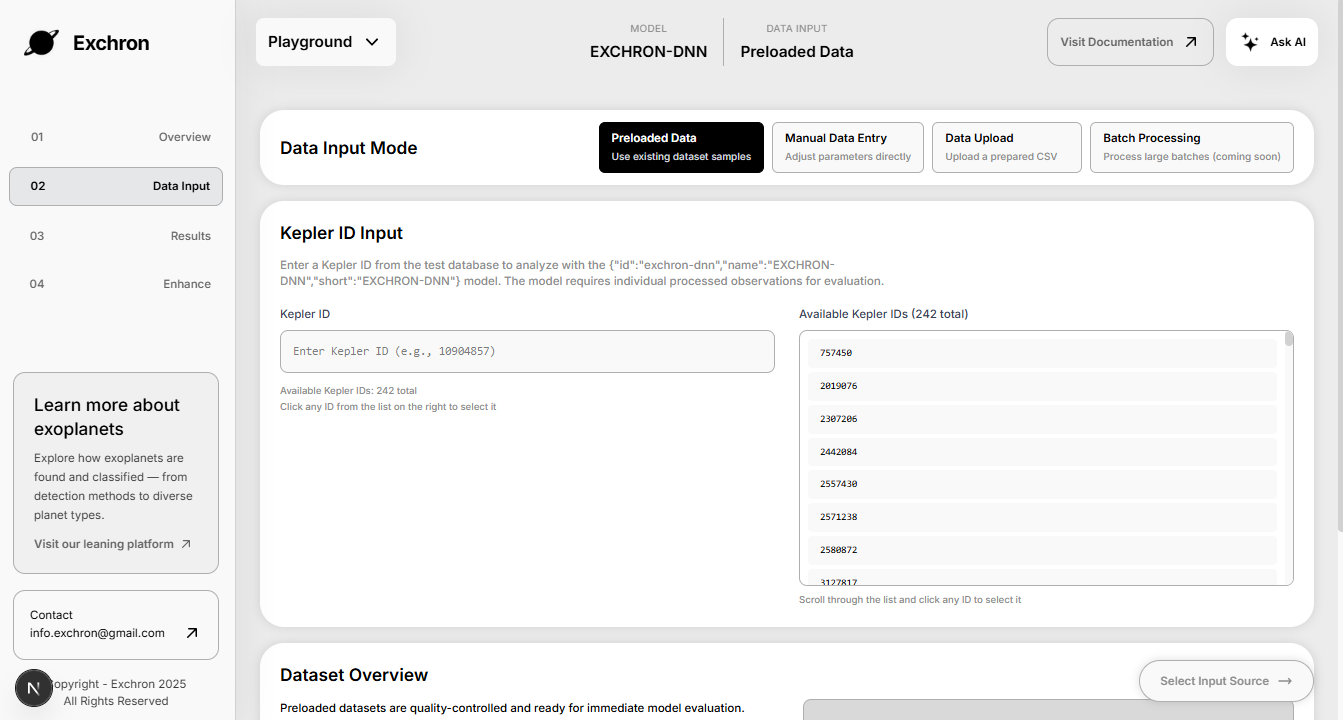
- You’ll arrive at the Data Input page with four input options:
- Preloaded Data
- Manual Data Entry
- Data Upload
- Batch Processing
- Pick the method that matches the model and your use case.
Step 4 — Run and view results
- If you choose Preloaded Data, select an individual observation to evaluate.
- Tip: Use the list/grid to locate a record quickly.
Step 5 — Inspect details
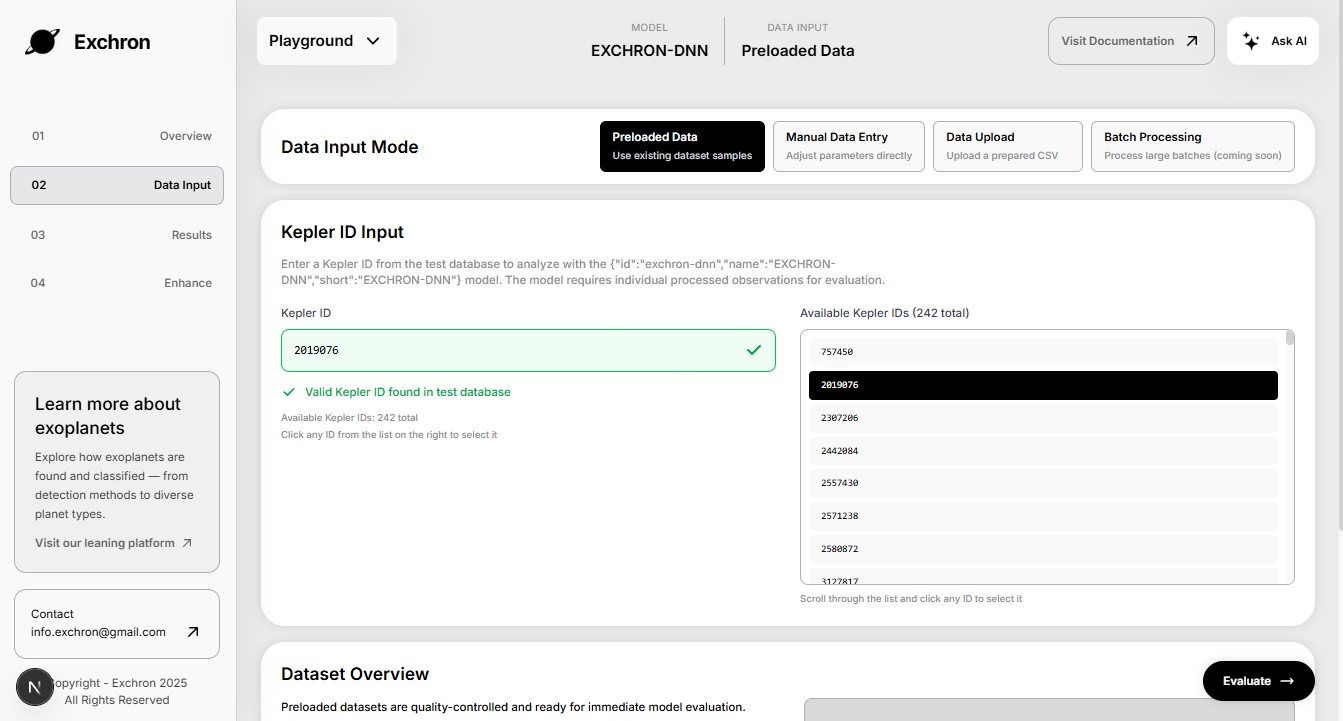
- You can select a record directly by clicking it or enter a Kepler ID manually.
- A dataset overview appears below the input section.
- When ready, click the Evaluate button to run the prediction.
Step 6 — Iterate and compare
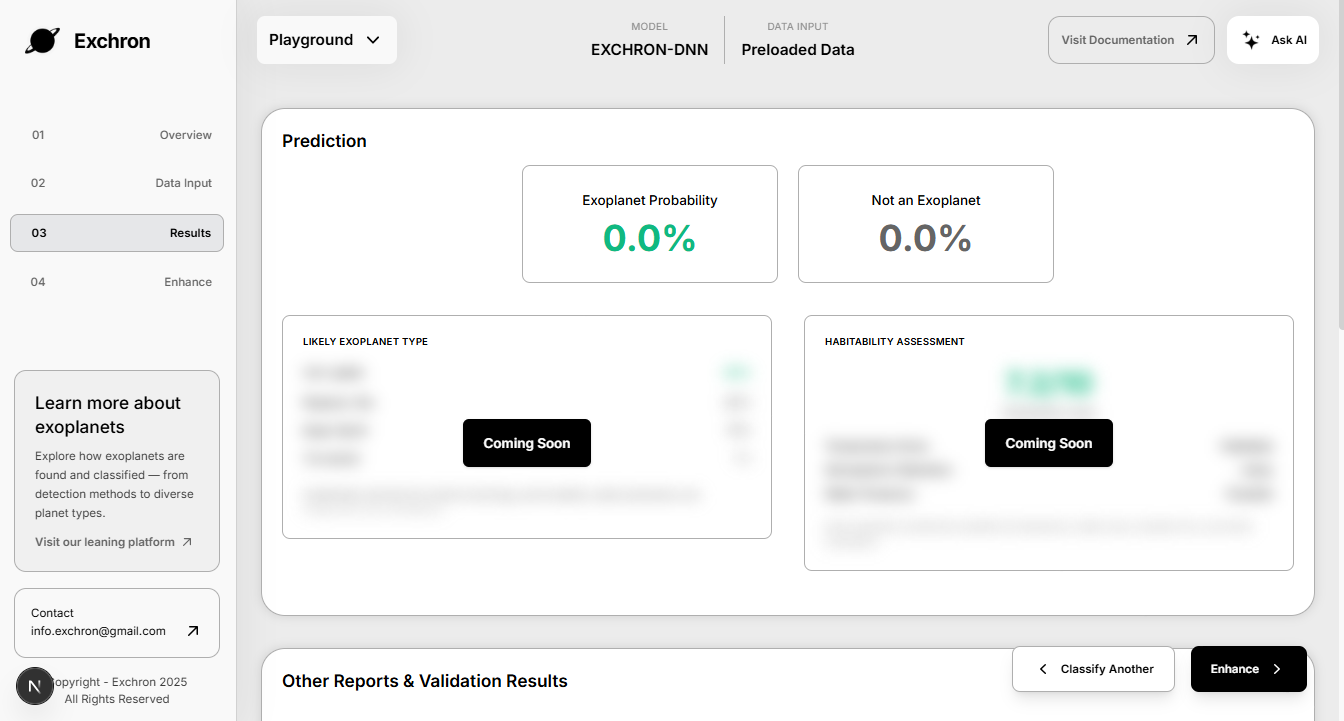
- You’ll see the Results page with the model’s prediction based on your data and selected model.
- Scroll to view additional details about the prediction in the sections below.
- When done, either:
- Click “Classify Another” to run another example, or
- Click “Enhance” to proceed to the next step.
Step 7 — Export or share
- Help us improve! In Enhance, you can:
- Upload datasets to help improve model performance, or
- Provide suggestions about improving the models and platform.